



Can I Buy Bitcoin with Apple Pay?
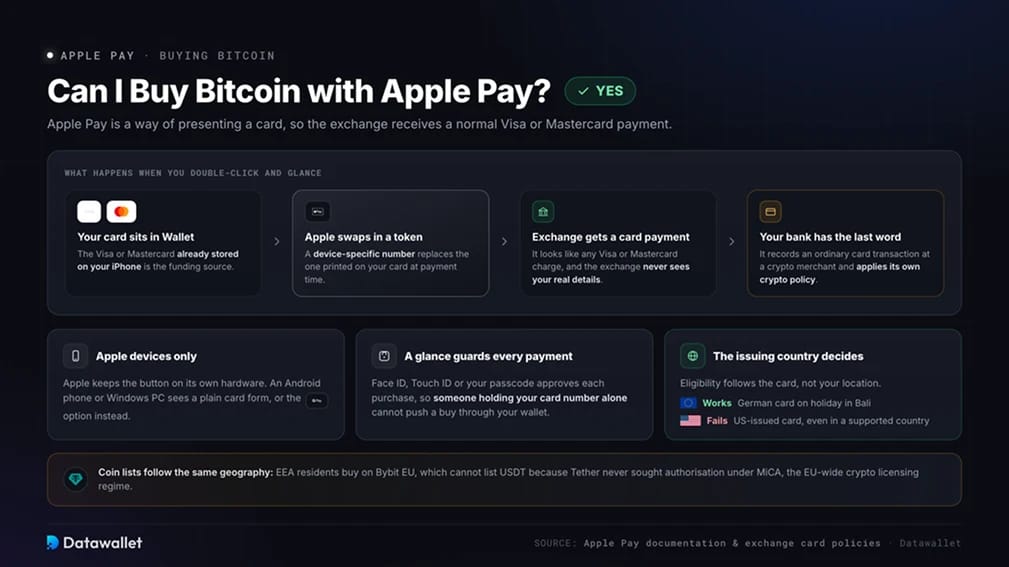
You can. Apple Pay presents the exchange with a standard Visa or Mastercard payment, but replaces the number printed on your card with a device-specific number. The exchange never receives your actual card details. Your bank still records the payment as a normal card transaction with a crypto merchant and applies its existing crypto policy.
The Apple Pay button appears only on Apple devices. Android phones and Windows PCs show either a standard card form or the Google Pay option. Each Apple Pay transaction also requires Face ID, Touch ID, or your passcode, preventing someone with only your card number from making a purchase through Wallet.
Eligibility follows the card’s issuing country rather than your current location. A German-issued card still works while its owner is visiting Bali, whereas a US-issued card fails even when used from a supported country. Available coins are also determined by geography. EEA residents purchase through Bybit EU, which cannot list USDT because Tether did not seek authorisation under MiCA, the EU-wide crypto licensing regime. Our USDT with Apple Pay guide explains this restriction further.
How to Buy Crypto with Apple Pay
We recommend Bybit because Apple Pay is part of its native One-Click Buy checkout. There is no partner widget adding a second markup, and the resulting account provides access to a 2,000-asset spot market with 0.10% fees. In our test, a 100 EUR order made with a French debit card on an iPhone 15 credited the Bitcoin in under three minutes. The billing address was the only additional prompt.
Steps to buy crypto with Apple Pay:
- Open and verify a Bybit account: Register with Bybit if you live outside Europe, or use Bybit EU if you are in the EEA. Complete Identity Verification Lv. 1 using a passport or national ID. Apple Pay purchases remain locked until verification is finished, and business accounts cannot use the payment method.
- Prepare the card in Wallet: Your Visa or Mastercard must show your legal name and be issued in one of Bybit’s supported issuing countries. Online and international payments must be enabled, along with 3D Secure, the bank’s additional online verification step. Corporate cards are not accepted.
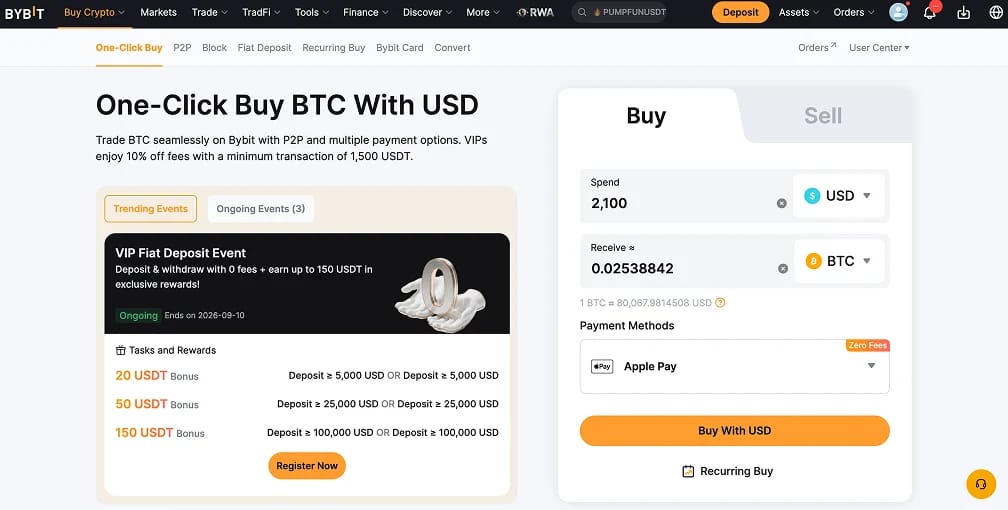
- Set up the order: Tap Buy Crypto and open One-Click Buy. Select your payment currency, chosen coin, and purchase amount before picking Apple Pay from the available methods. If Apple Pay is missing, the card’s issuing country is almost always the reason.
- Pay with Face ID: Choose your country or region before the card fields appear, as Apple Pay uses different address formats across markets. Confirm the payment sheet with Face ID or Touch ID. The coins usually arrive in your Funding Account within ten minutes.
- Withdraw what you intend to hold: Funds left on an exchange remain a claim on that exchange. Crypto you expect to hold for months should be moved to a wallet whose keys you control. Our best crypto wallets guide compares the available options.
Bybit cannot return funds directly to Apple Pay. Cashing out requires you to sell into a fiat balance and withdraw to a bank account, or use the peer-to-peer market.
Apple Pay Crypto Fees and Limits
Apple receives its share from the card issuer. The charges listed below come from Bybit or your bank.
- Card processing fee: Bybit’s published schedule charges 1.10% for Visa and Mastercard cards issued in the EU. Non-EU Mastercard payments cost 2.70%, while non-EU Visa payments cost 3.05%. Fees apply only to the filled portion of an order, and cancelled orders incur no charge.
- Fee-free launch order: From 24 August to 24 September, Bybit waives the fee on one Apple Pay purchase worth at least $100 per verified account. The waiver covers up to $3.20, with any remaining fee charged at the normal rate.
- Purchase limits: Standard verification keeps individual orders below $10,000. Total purchases are capped at $20,000 per day, $50,000 per week, and $100,000 per month. Advanced verification increases those limits to $50,000 daily, $100,000 weekly, and $250,000 monthly. Fiat deposits use the same allowances.
- Cash advance risk on credit cards: Some card issuers classify credit-funded crypto purchases as cash advances, adding a separate fee and charging interest from the first day. Other issuers block crypto purchases on credit entirely, and adding the card to Apple Wallet does not remove that restriction. Debit cards avoid both issues. Our credit card guide covers individual bank policies.
- Conversion rate: One-Click Buy updates its quote every 30 seconds. Bybit’s conversion margin is included in the displayed price, so compare it with the live spot price before confirming.
- Trading and withdrawal: Spot trading costs 0.10% on both sides of an order. Withdrawals to a personal wallet incur the network fee, which is negligible on Solana and below one dollar for USDT on Tron.
Processing a 2,000 EUR Apple Pay purchase from an EU-issued card costs 22 EUR, followed by a 2 EUR trading fee. Depositing the same amount through a SEPA bank transfer is free. We therefore reserve Apple Pay for smaller or time-sensitive purchases and use bank transfers for larger amounts.
Best Exchanges That Accept Apple Pay
Every platform listed below supports Apple Pay in at least some markets. Our rankings consider eligible card countries, native versus outsourced checkout, the licence supporting each service, and the trading costs applied after the funds arrive.
Bybit ranks first when your card is issued in one of its 36 supported currencies. None of its competitors combine Apple Pay coverage across as many markets with a 0.10% spot fee. Kraken covers the two largest countries excluded by Bybit, the US and the UK.
For Australians, OKX provides an AUD checkout backed by an operator registered with AUSTRAC, Australia’s anti-money laundering regulator. Coinbase is better suited to US customers willing to pay higher fees for a publicly listed counterparty.
Apple Pay Crypto Rules by Region
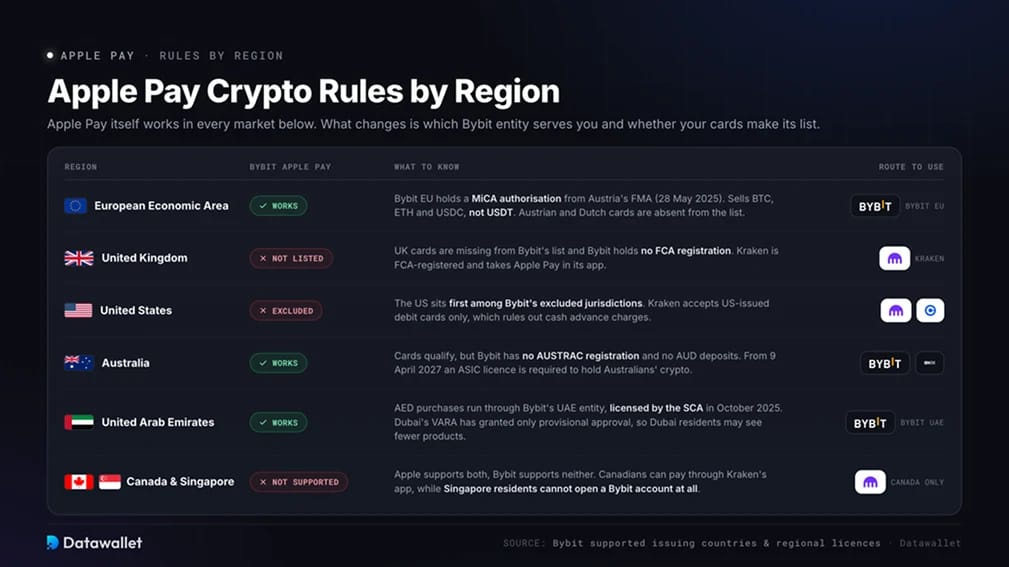
Apple Pay operates in every market covered below. The differences lie in the Bybit entity serving each country, the assets it can offer, and whether locally issued cards appear on its supported list.
- European Economic Area: EEA residents register through Bybit EU, operated by Bybit EU GmbH under a MiCA authorisation granted by Austria’s FMA on 28 May 2025. The platform offers Bitcoin, Ethereum, and USDC, but not USDT. Apple Pay does not support Austrian or Dutch cards through Bybit. A Revolut card works across the bloc, while our MiCA-licensed exchange guide compares other options.
- United Kingdom: UK-issued cards do not appear on Bybit’s Apple Pay list, and Bybit is not registered with the FCA, the UK’s financial regulator. FCA-registered Kraken accepts Apple Pay within its app. Further options appear in our best UK exchanges guide. Using a Monzo card in Wallet avoids the crypto restrictions imposed by some high-street banks.
- United States: The US is the first excluded jurisdiction named in Bybit’s Service Agreement. American Apple Pay users must therefore use an alternative such as Kraken or Coinbase. Kraken permits US-issued debit cards only, removing the risk of cash advance charges. Our best US exchanges guide compares licensed providers.
- Australia: Australian-issued cards are eligible, although Bybit has no AUSTRAC registration or AUD bank deposit support. Apple Pay is therefore its only direct funding method in Australian dollars. From 9 April 2027, the Digital Assets Framework Act will require an ASIC licence to hold crypto for Australians. Those seeking a locally registered venue today can use a CommBank card with OKX or choose a provider from our best Australian exchanges guide.
- United Arab Emirates: AED purchases are handled by Bybit’s UAE entity, which received a licence from the Securities and Commodities Authority in October 2025. Bybit holds only provisional approval from Dubai’s regulator, VARA, so Dubai residents may have access to fewer products. Our best UAE exchanges guide explains how the two regulatory regimes differ.
- Canada and Singapore: Apple Pay supports both countries, but Bybit does not accept Apple Pay payments from either. Canadian users can purchase through Kraken’s app. Singapore residents cannot open a Bybit account. Our Bybit supported countries guide lists every excluded jurisdiction.
About Apple Pay
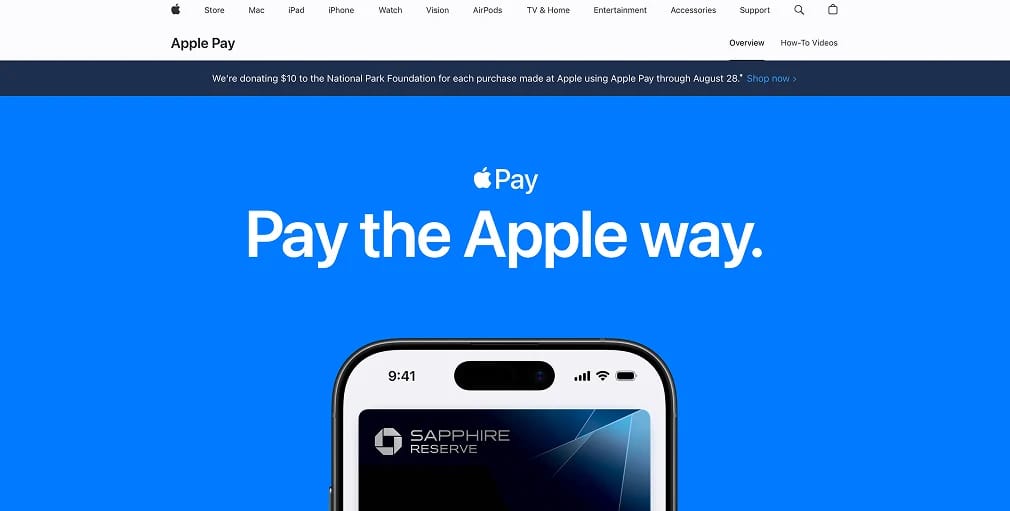
Apple Pay launched in the US in October 2014 and is now available across dozens of countries and regions. It supports payments in stores, within apps, and online using an iPhone, iPad, Apple Watch, Mac, or Apple Vision Pro. Apple Payments Services LLC operates the service but is not a bank. Each card held in Wallet is issued by the user’s own bank. Apple Cash, its person-to-person balance, is available only in the US through Green Dot Bank.
Crypto exchanges accept Apple Pay because its design reduces their exposure to fraud. When a card is added, Apple creates a Device Account Number and stores it in the phone’s secure chip. A breach at the merchant would expose only that token, which cannot be used without the device. Requiring biometric approval for each payment further limits the practical fraud route to a stolen, unlocked iPhone.
Apple also applies conditions to crypto services. Its App Store guidelines allow exchange and wallet apps to operate only in markets where the developer holds the required licences. Apple Pay approval does not guarantee approval from your bank. A transaction can pass Face ID and still be declined by an issuer that blocks crypto merchants.
Bottom Line
Apple Pay is difficult to beat when you need to buy crypto within five minutes. That speed carries a card fee of 1.10% to 3.05%, making it better suited to small or urgent purchases. Bank transfers remain the more economical option for larger amounts.
We recommend Bybit because it accepts Apple Pay natively across 36 currencies, serves EEA customers through an Austrian MiCA licensee, and operates in the UAE through an SCA licensee. Spot trading costs 0.10% once the coins arrive. Before verifying, confirm that Bybit accepts cards issued in your country and ensure the cardholder name matches the account name.
As always, our team recommends moving long-term holdings into self-custody. Not your keys, not your coins!